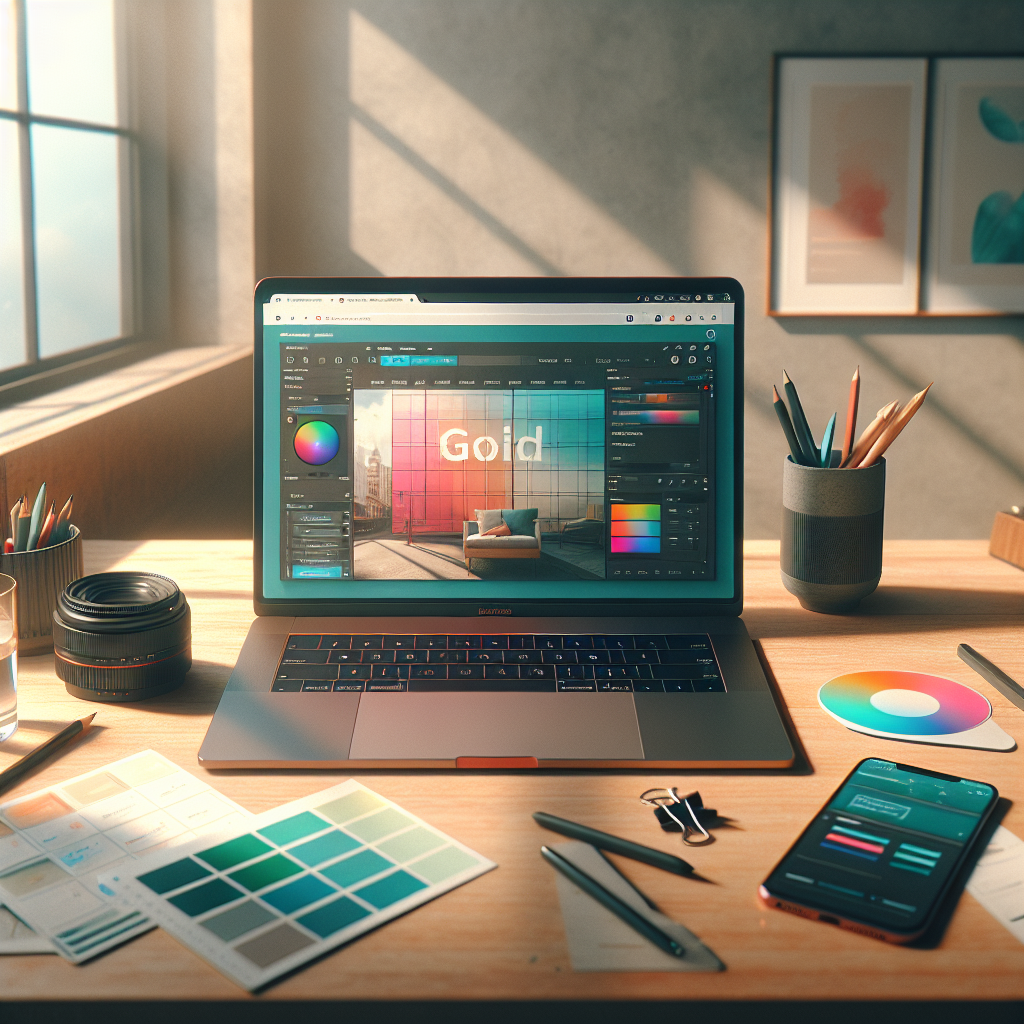
Designing eye-catching, web-ready graphics no longer requires expensive software or months of training. Today, a rich ecosystem of free AI-powered tools lets designers, marketers, and small-business owners create, edit, compress, and export images optimized for websites — often in minutes. This article walks through the best free options, practical workflows, and tips to turn AI-generated visuals into fast, usable web assets.
Why use AI tools for web graphics?
AI accelerates ideation and execution. Generative models can produce concept images, variations, and background-free assets. AI-powered retouching and object removal save hours compared with manual editing. For web projects specifically, many tools include export presets, automatic resizing, and compression settings tuned for page speed.
Core free tools to generate and edit images
Start by selecting an AI generator, then refine and optimize the result with editing and compression utilities. Here are reliable free options that together cover the whole pipeline:
Image generation
• Hugging Face Spaces: Many Stable Diffusion Spaces run free and can generate high-quality images from prompts without setup. Great for experimenting with models and styles.
• Google Colab notebooks (Stable Diffusion): Several community notebooks let you run Stable Diffusion in the cloud for free (with resource limits). You get more advanced control over sampling and models.
• Bing Image Creator: Free image generation integrated with Microsoft accounts, good for quick concepts.
• NightCafe and Dream by Wombo: Offer free daily credits that can produce usable concept art and photoreal renders.
Editing and layout
• Photopea: A free, web-based Photoshop alternative that opens PSDs, exports multiple formats, and supports layers and masks. Essential for compositing AI-generated images into web layouts.
• Figma (free tier) + plugins: Figma supports collaborative design and has plugins like Magician for AI-assisted image and copy generation. Export assets at multiple scales and formats.
• Canva (free tier): Simple AI tools for background removal, text-to-image (in some regions), and ready-made templates. Excellent when you need fast social graphics and web banners.
Background removal, upscaling, and retouching
• remove.bg (free low-res): Instant background removal for product shots and hero images.
• Upscale.media / Let’s Enhance (limited free): AI upscalers to increase resolution while preserving detail — useful when an AI image needs to match website requirements.
• GIMP + plugins: Free desktop editor for fine retouching; combine with AI upscalers for local editing workflows.
Optimize and export for the web
Once you have the visual, optimize for performance and responsiveness:
• Export multiple sizes (e.g., 1x, 2x, 3x) and use srcset in HTML to serve appropriate resolutions.
• Convert to WebP where supported for smaller file sizes, or provide fallbacks (JPEG/PNG).
• Use compression tools like TinyPNG or Squoosh to balance quality and filesize.
• Strip metadata and set correct color profiles for consistent display across browsers.
Suggested workflow: idea to web-ready file
1) Concept: Use Hugging Face Spaces or Bing Image Creator with a carefully crafted prompt.
2) Iterate: Generate several variations and pick the best composition.
3) Edit: Open the chosen image in Photopea or Figma to add overlays, logos, and responsive layouts.
4) Remove background if needed with remove.bg, then place the subject on a consistent web-friendly background or SVG.
5) Upscale and retouch with free upscalers if you need larger sizes.
6) Export optimized WebP/JPEG at multiple resolutions and compress with Squoosh or TinyPNG.
7) Generate accessible alt text using an AI text tool to improve SEO and accessibility.
Prompt tips for predictable results
Be specific about style, composition, color palette, and purpose. Mention desired aspect ratio and whether transparency is required. For example: “photorealistic hero image of a laptop on a clean wooden desk, soft natural light, shallow depth of field, vibrant brand colors (teal and coral), empty space on the right for headline, 16:9 aspect ratio, high resolution, no text.”
Legal and ethical considerations
Free AI tools often come with usage limits and particular license terms. Check each tool’s policy for commercial use if the website is for a business. When using user-supplied or model-trained content, ensure you have the rights to publish and modify the results. Keep backups of original files in case you need to rework images later.
Combining free AI generators, browser-based editors, and compression utilities gives you a fast, cost-effective pipeline for web-ready graphics. With a consistent workflow — generate, refine, remove background, upscale, and optimize — you can produce professional visuals that load quickly and reflect your brand. Experiment with different models and export settings to find the balance between visual fidelity and page performance that works best for your site.