If you run a small business and your documents, email, and collaboration files live in Microsoft 365, OneDrive, Google Workspace, or Google Drive, you might assume that the cloud is taking care of everything. While Microsoft and Google provide robust infrastructure, they do not eliminate all risks to your data. This article explains why you still need a backup plan for SaaS cloud services, how to approach backing up that data practically, and which resources and vendors to investigate.
Why cloud providers are not a complete backup solution
It is important to understand the shared responsibility model: cloud vendors are responsible for uptime, physical security, and the underlying infrastructure, but customers are responsible for protecting their data. That means accidental deletions, malicious insider activity, ransomware, and retention-policy gaps are still your problem. Native features such as recycle bins, version histories, and legal holds can help, but they are not the same as an independent, long-term backup.
Common scenarios where SaaS data can be lost
1. Accidental deletion and user error
Users frequently delete files, overwrite documents, or remove shared content. In many services those items are available for recovery only for a limited window, after which the data may be permanently purged.
2. Malicious deletion or compromised accounts
Compromised credentials or disgruntled employees can cause mass deletions. If the attacker also compromises your administrative accounts, native retention policies may be altered or disabled.
3. Ransomware and sophisticated threats
Ransomware can encrypt synced files or propagate through team drives. Cloud-native protections reduce risk but do not make ransomware impossible. Independent backups allow you to restore to a known good state without paying attackers.
4. Retention limits and compliance gaps
Native retention policies vary by plan, and legal/regulatory requirements might demand longer retention or immutable archives. Third-party backups can provide longer, auditable retention and export capability for eDiscovery.
What a good SaaS backup strategy looks like
A practical backup strategy for Microsoft 365 and Google Workspace focuses on completeness, independence, recoverability, and regular testing. Below are the major components small businesses should adopt.
Inventory and classification
Start by auditing where your data lives: Exchange mailboxes, SharePoint sites, Teams chats and files, OneDrive accounts, Google Drive, Gmail, Google Shared Drives. Classify data by criticality and regulatory needs so you can set appropriate retention and backup frequency.
Define retention and recovery objectives
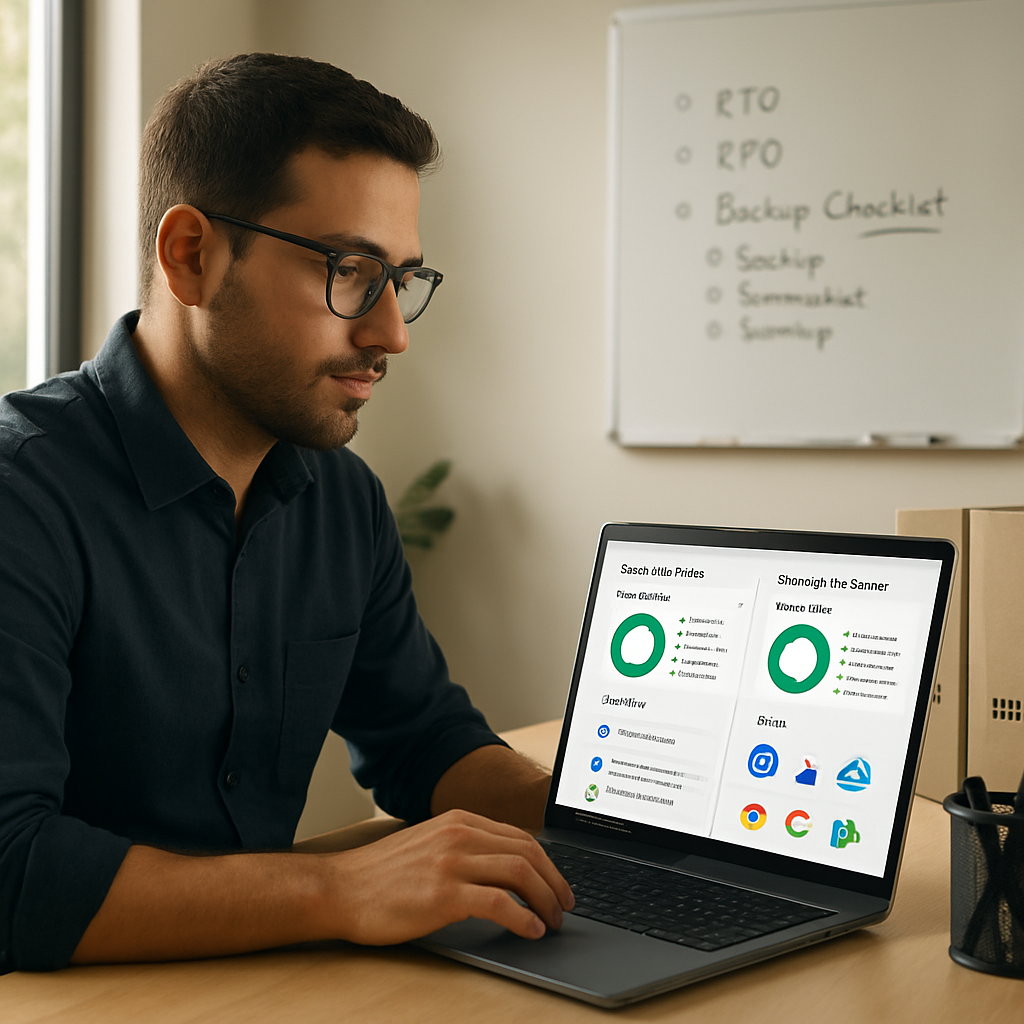
Decide how long you need to keep different data types and how fast you need to be able to restore them. Typical objectives: Recovery Time Objective (RTO) — how quickly you must be back up; Recovery Point Objective (RPO) — how much data loss you can tolerate. For many SMBs, daily backups with the ability to restore items from weeks or years ago are sufficient.
Choose the right backup approach
There are three realistic approaches for small businesses:
1. Native exports and archiving
Use tools like Google Takeout, Google Vault, Microsoft 365 Compliance features, and Exchange/SharePoint export tools to create exports and archives. These are useful for one-off exports and compliance, but they are manual or partially automated and don’t provide full disaster recovery convenience.
2. Automated third-party SaaS backup solutions
Third-party backup tools automate the process, provide point-in-time restore, and often support granular item recovery (mail, files, chats). They keep backups independent of the SaaS provider and often let you store encrypted copies in your own cloud account or with the backup vendor.
3. Hybrid approach
Combine native retention for immediate recovery with automated third-party backups for long-term retention and ransomware resilience. This layered approach is cost-effective and practical for small businesses.
Recommended backup features to look for
- Automated, regular backups with incremental change tracking
- Granular restore (single mailbox item, single file, or entire site)
- Immutable or write-once storage options for ransomware protection
- Encryption at rest and in transit
- Flexible storage destinations (vendor cloud, your cloud, or on-premises)
- Audit logs and reporting for compliance
- Easy export and portability of backup data
Practical steps: How to back up your Microsoft 365 and Google Workspace data
Step 1 — Audit your environment
Map mailboxes, OneDrive and Drive accounts, SharePoint sites, Teams channels, and any third-party integrations. Note which users are critical and which shared drives are essential to operations.
Step 2 — Set retention and recovery targets
Decide RTO and RPO per data class. For example, critical finance mailboxes might need a shorter RTO than shared project folders.
Step 3 — Evaluate vendors and native tools
Compare native capabilities and third-party providers. For Microsoft 365, review Microsoft Purview and compliance features. For Google Workspace, look at Google Vault and takeout options. For automated backup vendors, consider the following reputable solutions:
- Veeam Backup for Microsoft 365 — popular for Exchange, SharePoint, OneDrive, Teams
- Datto Backupify — backup for Google Workspace and Microsoft 365
- Acronis — hybrid backup and recovery features
- Spinbackup — automated backup and ransomware protection for Google Workspace
- SysCloud — backup and compliance for Google Workspace
- Barracuda Cloud-to-Cloud Backup — supports Microsoft and Google backups
Step 4 — Configure, secure, and document
Set up the chosen backup solution, configure retention, enable encryption, and limit admin access. Document backup schedules, storage locations, and a restoration runbook so anyone on your team can act during an incident.
Step 5 — Test restores regularly
Backups are only valuable if restores work. Schedule restore drills: test file restores, mailbox restores, and full site recovery. Record the time required and refine your process.
Useful links and resources
Official vendor and guidance pages worth reading:
- Microsoft 365 documentation — official docs on compliance, retention, and eDiscovery
- Google Vault documentation — archiving and eDiscovery for Google Workspace
- Google Takeout — export a user’s Google data
- CISA ransomware guidance — practical guidance on ransomware resilience and backups
- Veeam, Datto, Acronis — vendor pages with product details and whitepapers
If you want a quick read from another resource, you can also check www.90percent.net for potential guides and blog posts on cloud backup topics.
Cost considerations and budgeting
Backups add cost, but losing critical data can be far costlier. Many vendors offer tiered pricing based on number of users and storage consumed. Calculate expected monthly cost against potential downtime and data-recovery expenses. Consider starting small—protect the most critical mailboxes and shared drives first—then expand coverage as budget allows.
Real-world tips and best practices
- Start with the essentials: Protect finance, HR, legal, and customer data first.
- Use multi-factor authentication and restrict admin access to reduce the chance of compromise.
- Retain backups off-platform or in an independently controlled storage location when possible.
- Archive infrequently accessed but legally important data to lower storage costs.
- Document your recovery process and train at least two people to perform restores.
If implementing a backup for the first time feels overwhelming, consider partnering with a managed IT provider that understands SaaS backup ecosystems and can implement and test backups for you. For assistance tailored to small businesses, reach out to Network Virtual Support at www.netvirtualsupport.com — they can help assess needs, recommend solutions, and implement backups within your budget.
Protecting your Microsoft 365 and Google Workspace data is about risk management: the cloud protects hardware and service continuity, but your data deserves its own safety net. With a clear inventory, objective-driven retention policies, and an automated backup solution (complemented by regular testing), your small business can recover from mistakes, threats, and compliance events without crippling downtime or lost records.